macOS Emojis Using Rocket
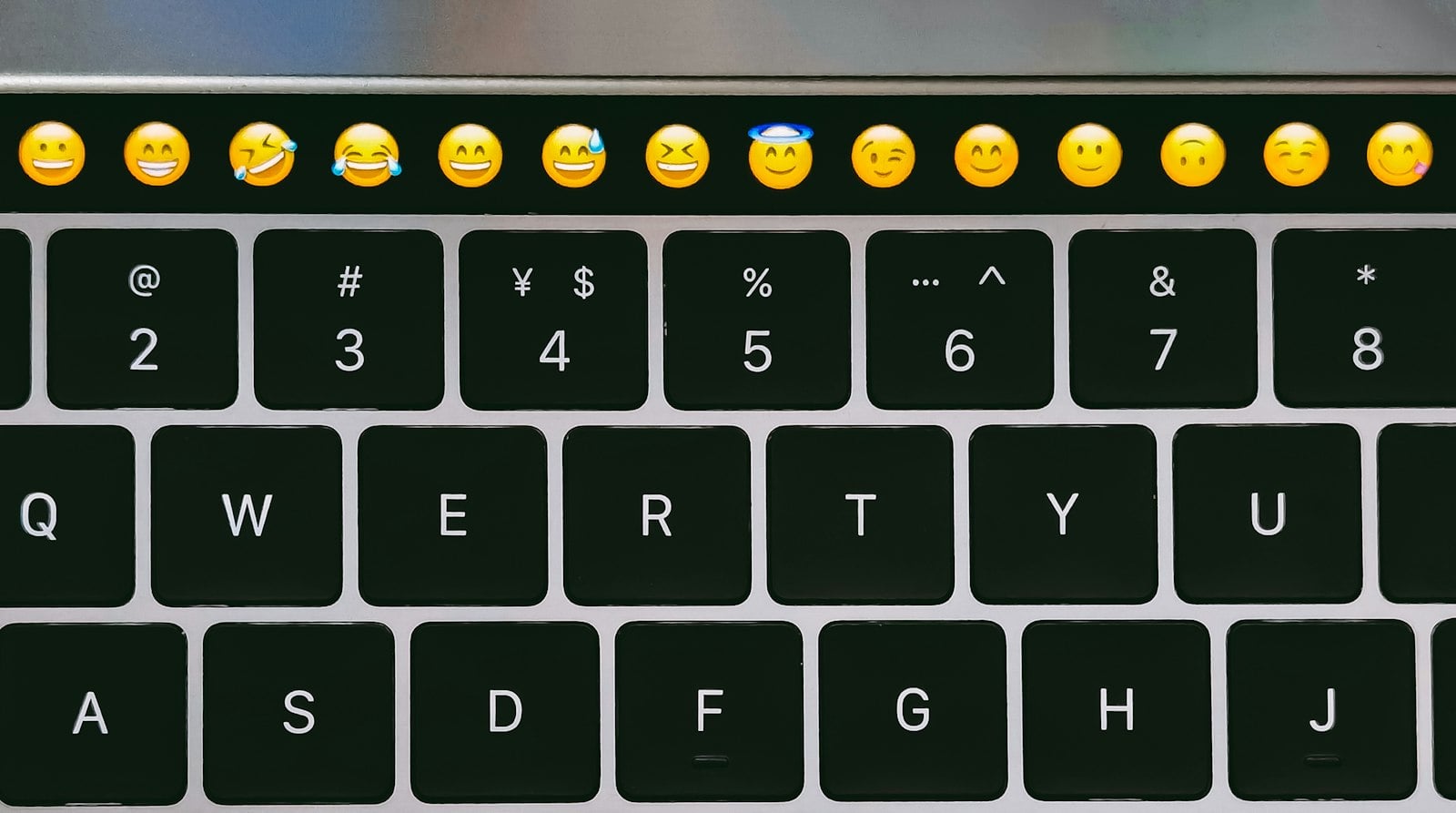
I don't love the emoji picker built into macOS. I wish it was more like Slack's. Fortunately, a third-party app called Rocket can supply a similar experience. I find it's better than the system version in three key ways.
1. Invocation
The default keyboard shortcut for the native Emoji & Symbols is:
Ctrl + Command + Space, or ⌃ + ⌘ + ␣. I have a terrible time remembering it.
The globe key can be set to open it, but that only works on certain keyboards.
In Rocket, simply type :. This is also configurable. I changed it to :: to prevent accidental invocation.
2. Navigation
Emoji & Symbols uses a grid while Rocket uses a list. The list is navigable with just the up & down arrow keys, while the grid requires left & right as well. I prefer the up & down key workflow.
3. Selection
In Emoji & Symbols, when searching, no selection is made. One must either press the down arrow key or use a pointing device. In Rocket, the best search result is automatically selected.
Both support entering the selected symbol via Enter or click.
Closing Notes
Of course, I install Rocket using Homebrew, https://formulae.brew.sh/cask/rocket#default.
I like Rocket a lot, and maybe you will too.
About the author
I like programming (at work) and learning for fun. You'll often find me cooking and working on my house in my spare time.
Comments
Join the discussionNo comments yet. Be the first to comment.